Expense
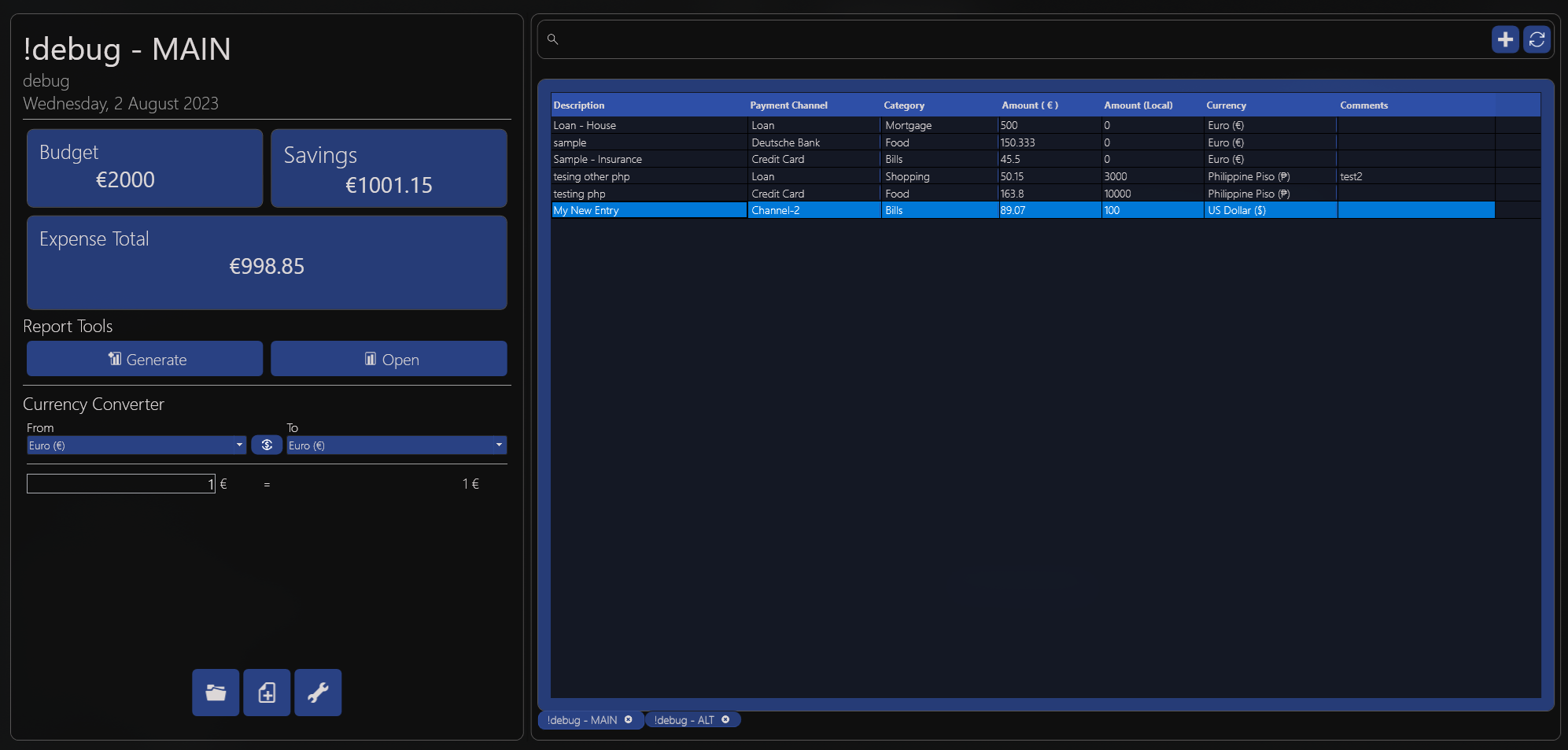
Creating your first Variable Expense
When you open the application, you'll need to create a new expense by clicking
the Create Expense button.
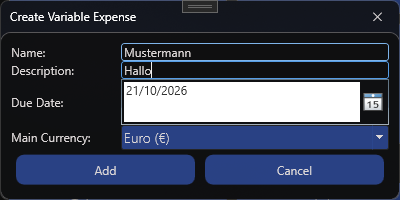
Fill in the information you want and make sure to fill in the Main Currency field.
Info
If you have an old expense from previous versions, the application will just use the Current Culture used by your PC.
Press Add, then you're off to add in your entries.
Adding Expenses/Bills Entries
On the right side of the application, there's an Add(+) button where you can add
an entry.
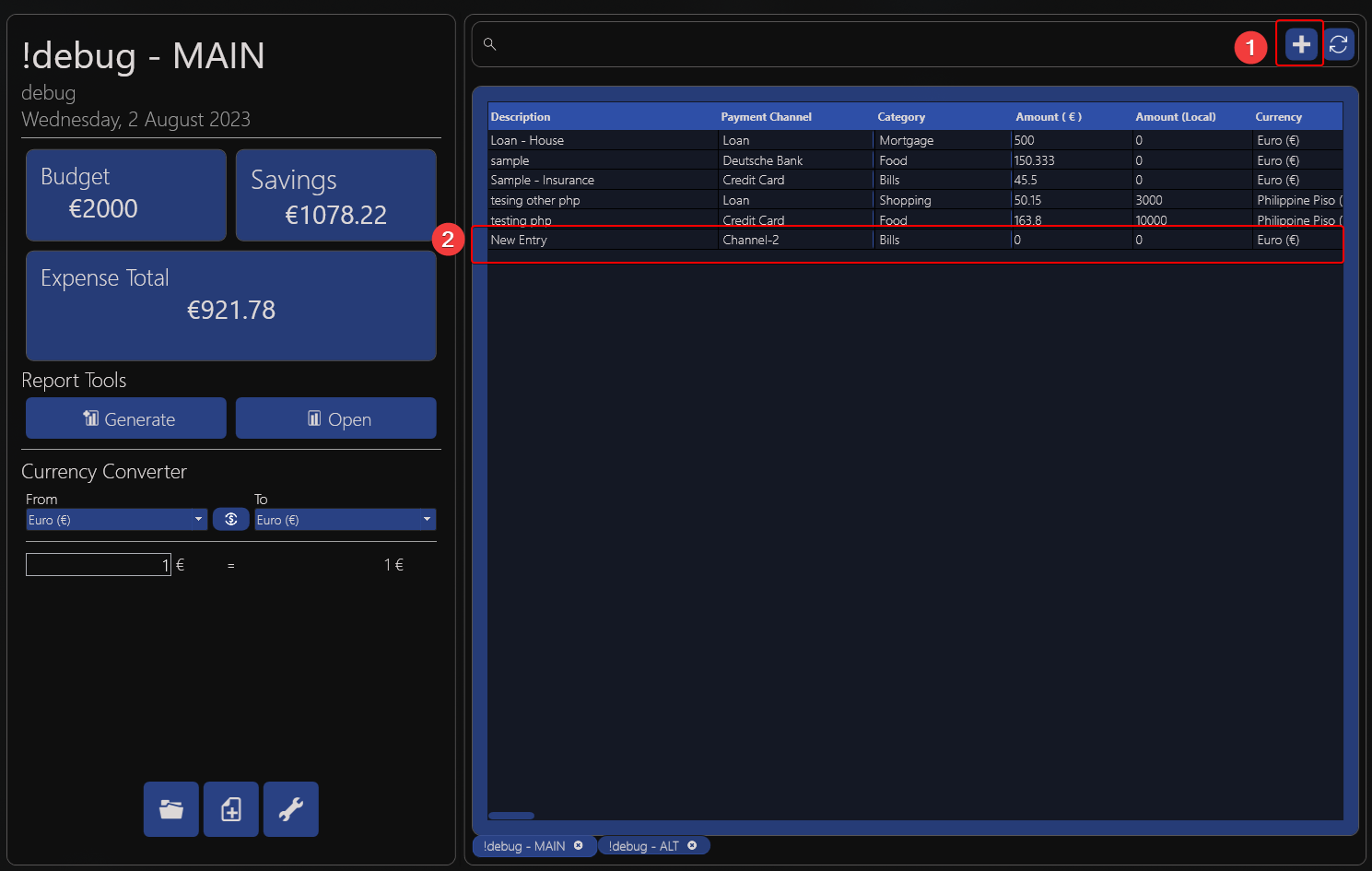
After clicking, it'll add an empty entry and you can now fill up the necessary info such as
- Description
- Payment Channel
- Category
- Amount (Your Expense's Currency)
- Amount (Local)
- Currency
Note
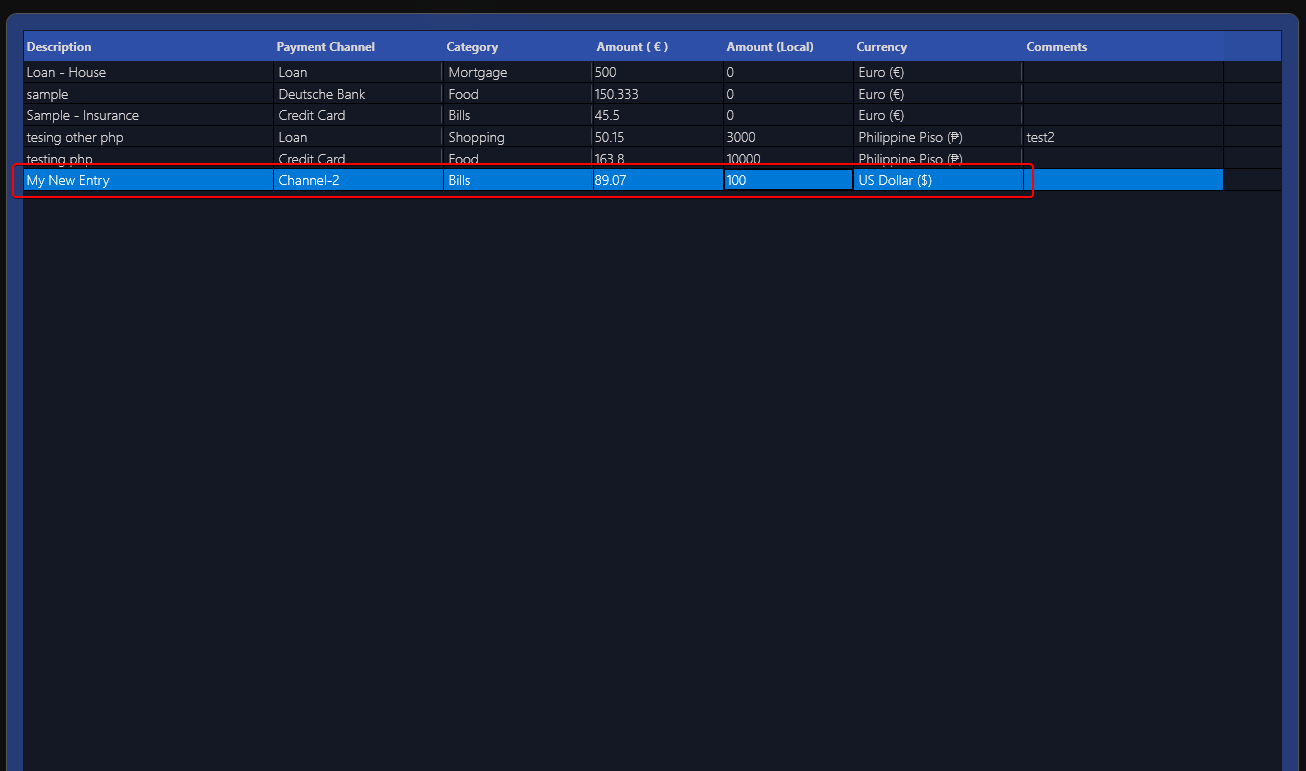
When selecting the currency which is NOT your Expense's currency, you should input the amount in the Amount(Local)
and the tool will automatically convert it to your Expense's set currency.

Now it's added in entries, you can edit/remove/add info anytime you want.
Context menus are also available at your disposal

Copy/Paste- you can copy/paste the selected entry/entries to any opened Expense in the Expense ViewRemove- deletes the entry, a warning will first ask you if you are sure that you want to delete it.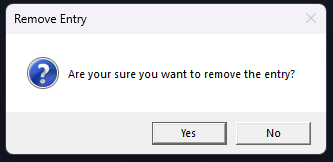
Sort Entries- sorts the entries in alphabetical order
Saving
Saving is as simple as ctrl+s. Also, the application saves all the current expenses opened in its session.
Generating Reports
Once you already have most of the entries added in, you can now generate reports by simply clicking on Generate.

A window will pop up containing the generated reports.
This will show a comprehensive report of your expenses. You can fill up
Partial Payments, add Comments, and even mark it as Paid.
The generated reports can also support partial payments, say you paid a part of it already, you can simply just click on Add Payment, if you paid the full amount already you can already tick the Paid checkbox.
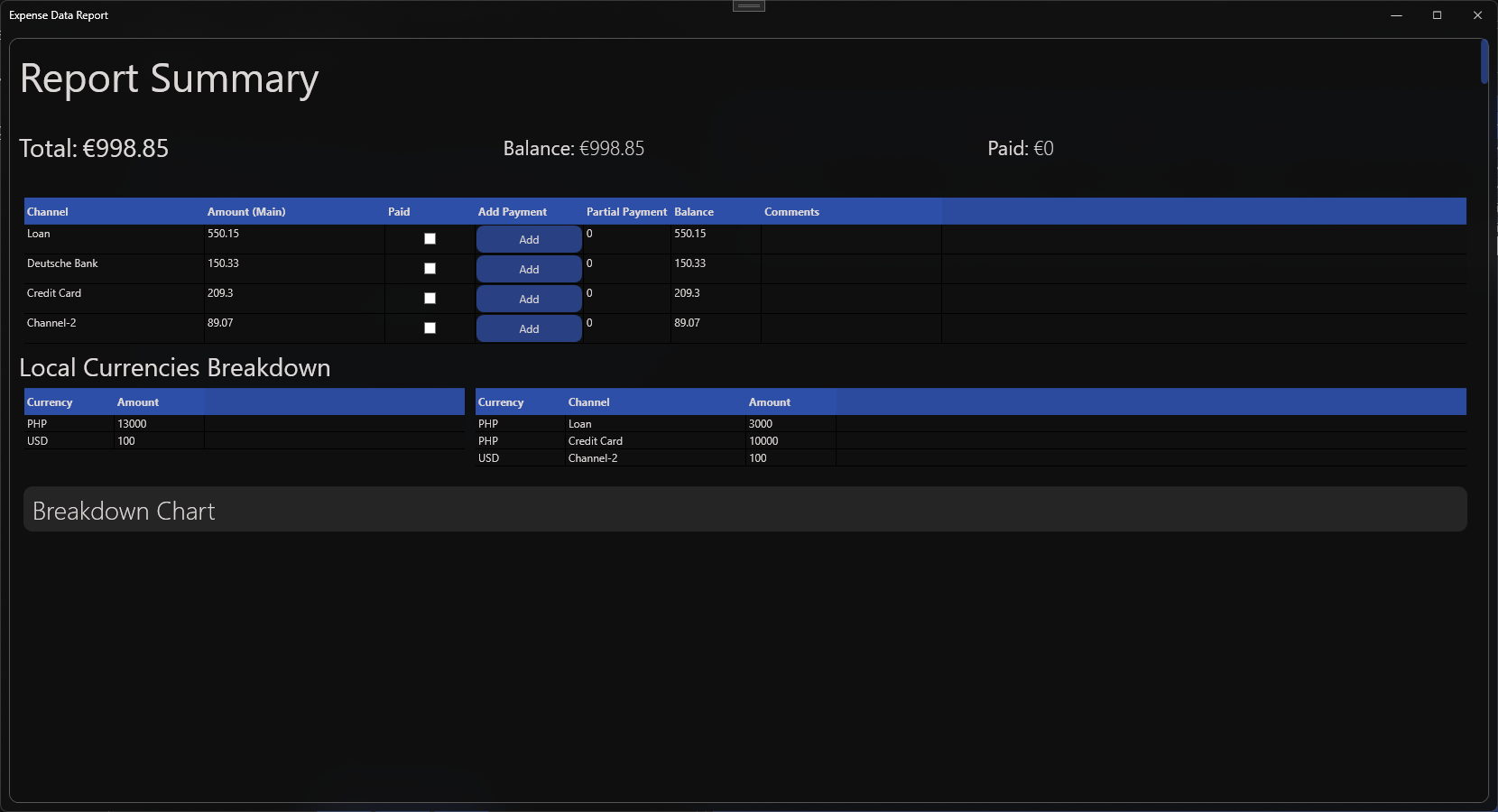
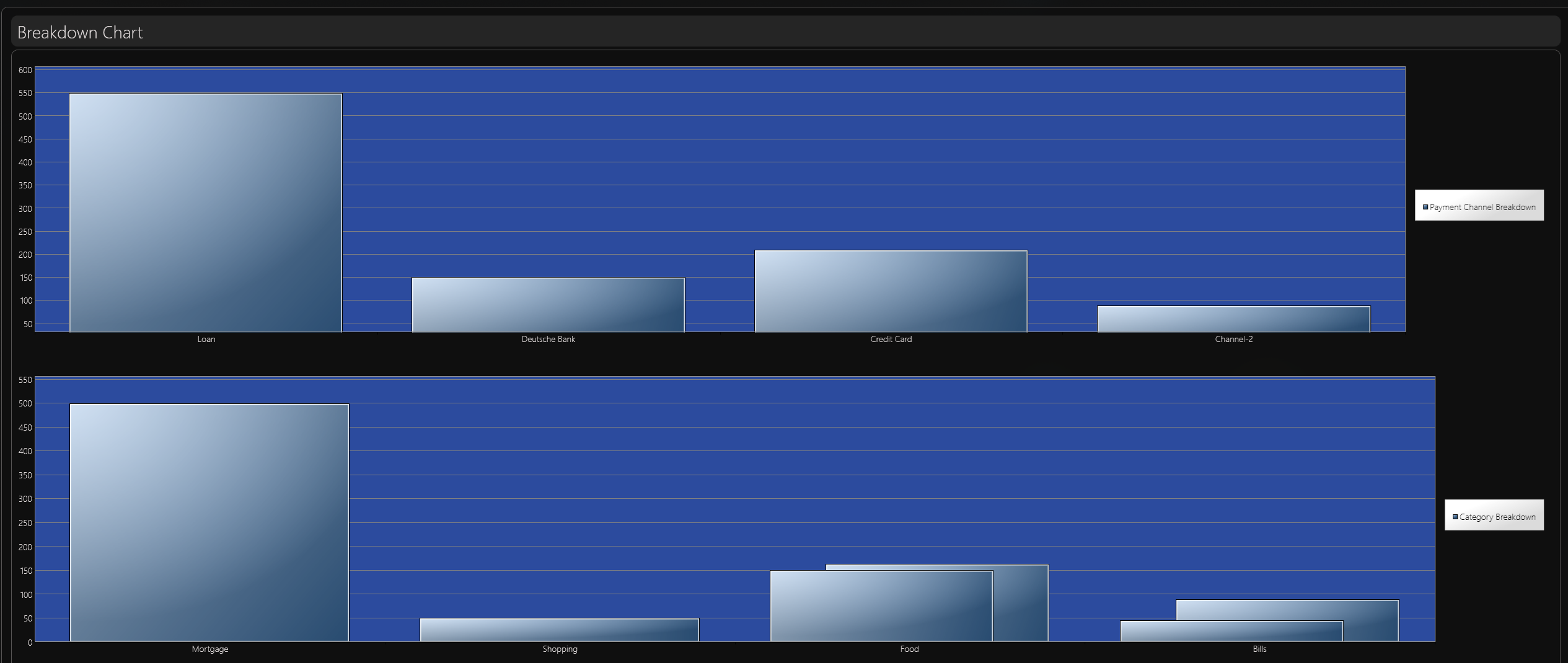
Clicking on the Breakdown Chart gives you more breakdown on your current expenses like how much you spent on each of the categories and which channels you have to spend/pay them to.
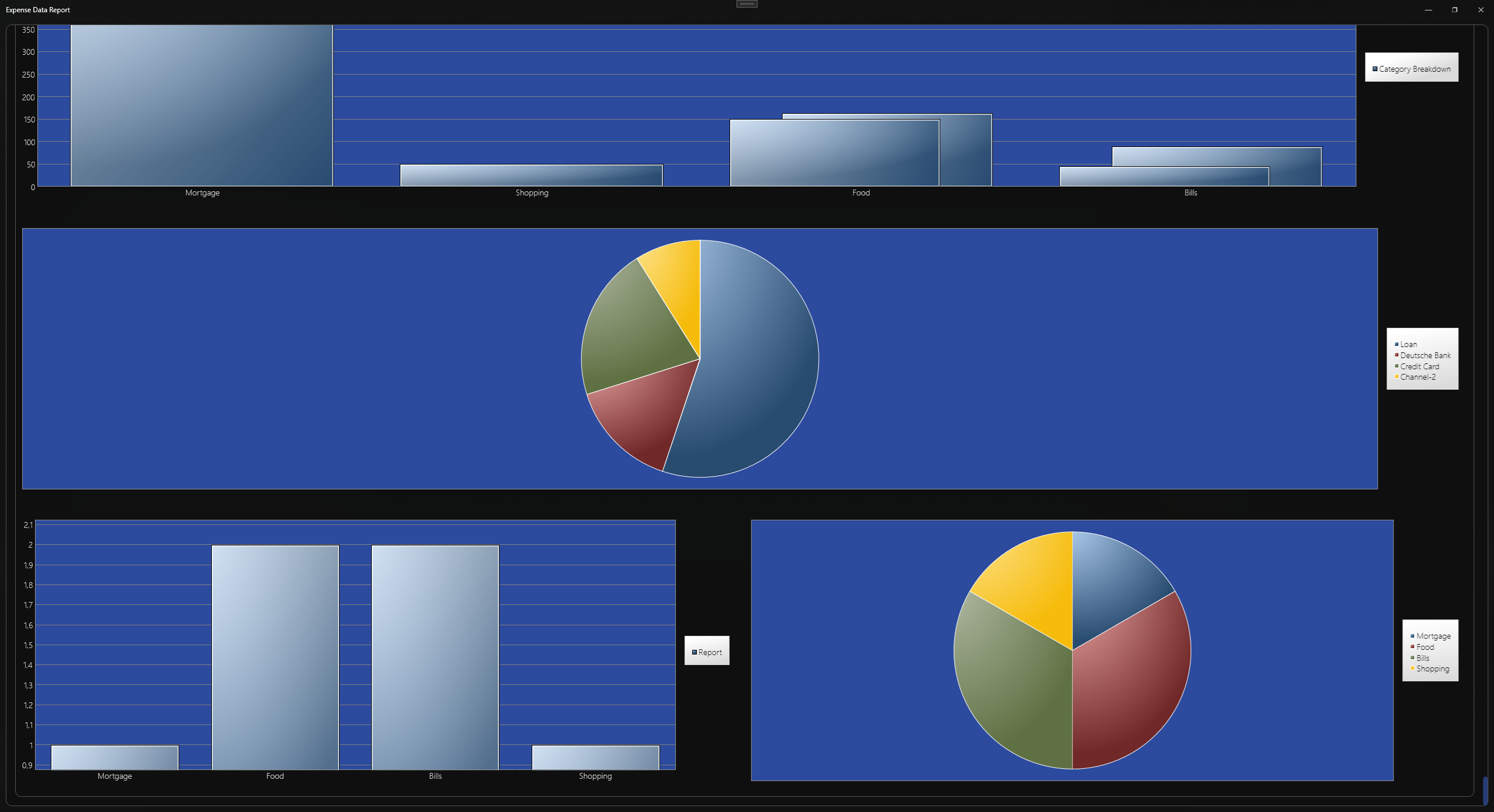
 Pie chart of the breakdown
Tip
If you already have a generated expense report and just want to track your
payment progress, just simply click Open.